
01
Your course. Your challenge.
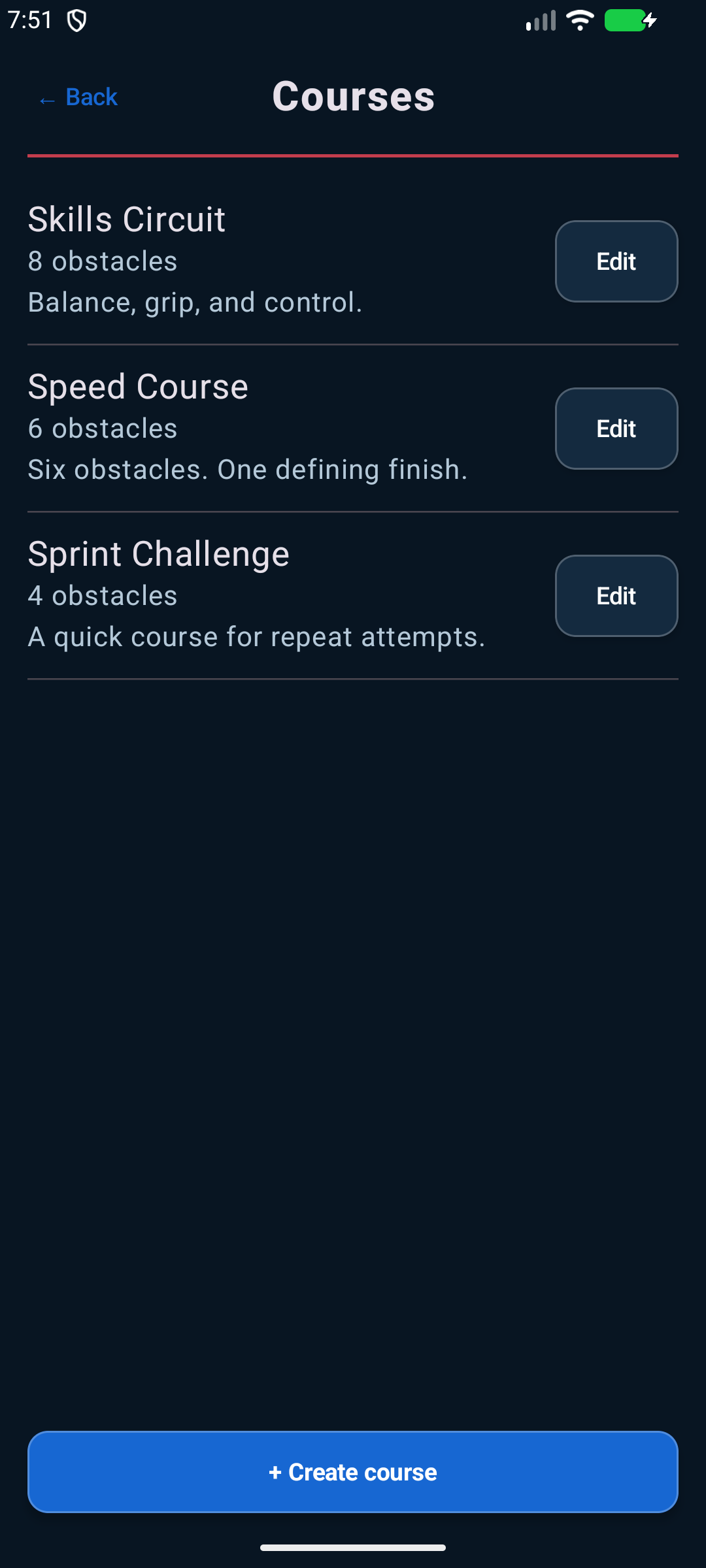
Create a named course, set its obstacle count, and add an optional time limit. Choose an athlete and the timing mode that fits the session.
SET UP YOUR COURSEFOR THE MOMENT THAT MATTERS
Wireless ninja course timing.
Your Android phone in control.
Time runs, mark obstacle clears and fails, and compare today’s leaderboard in your backyard or ninja gym.
Free to join. No payment or unit reservation. See how it works.
 TRAIN WITH PURPOSE.
01 / MORE THAN THE FINISH
From the course you set
to the results you keep.
Create a named course, set its obstacle count, and add an optional time limit. Choose an athlete and the timing mode that fits the session.
SET UP YOUR COURSERecord Clear and Fail marks as the athlete moves through the course. Keep the elapsed time at each mark, with pause and undo controls close at hand.
FOLLOW THE RUNSave the result to run history and today’s course leaderboard. Compare times and obstacles cleared, then open an attempt to review its details.
SEE TODAY’S LEADERBOARD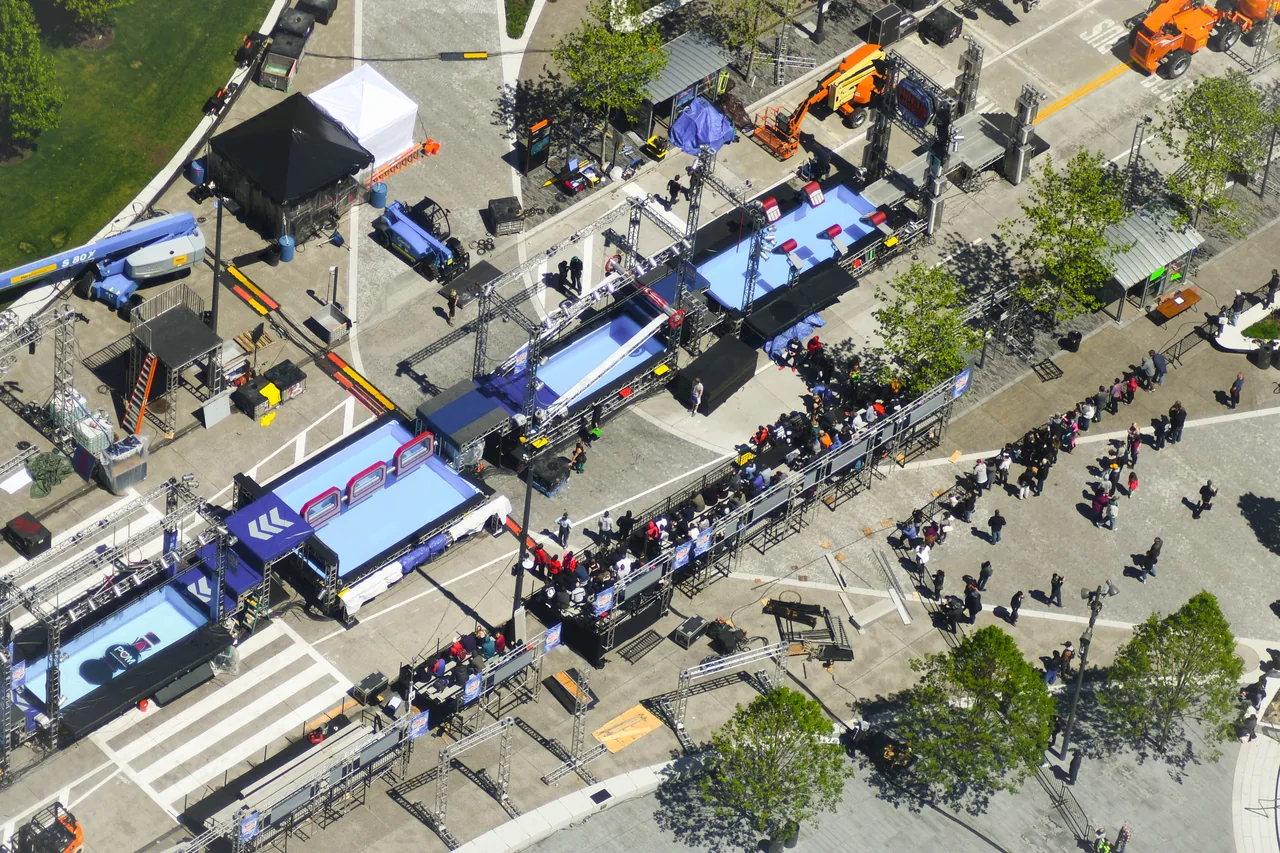
THE COURSE IS CALLING
From the first obstacle to the final reach.
Give the finish everything you’ve got.
Course photo: Erik Drost / CC BY 2.0 · Cropped & darkened for display.
02 / FROM THE START TO THE SAVED RESULT
A buzzer for the athlete.
The app for the person running the session.
Connect one or two buzzers wirelessly to the Android app on your phone. Select an athlete and course, then choose your mode. Manual mode runs from the app alone.
Start using the chosen mode. As the athlete runs, the operator records each obstacle as Clear or Fail in the app.
Review the finish and obstacle marks, then save the run. Today’s leaderboard updates for that course, ready for the next attempt.
03 / FIND YOUR WAY TO RUN
Three ways to time a run today.
Single Player and Spectator Display are coming soon.
Start the timer from the app or with a press of the connected buzzer. Hit the buzzer to finish, or stop the time in the app. The app also manages the obstacle count and each Clear or Fail mark.
A coach starts the run in the app while the athlete finishes at the buzzer. Or use one buzzer for both ends of a loop or out-and-back challenge.
Either connected buzzer can start the timer; the other stops it. The app keeps manual start and stop overrides available, and manages the obstacle count and Clear or Fail marks.
A point-to-point ninja course, a sprint between stations, or a training lane with a dedicated start and finish. The operator can start or stop from the app when needed.
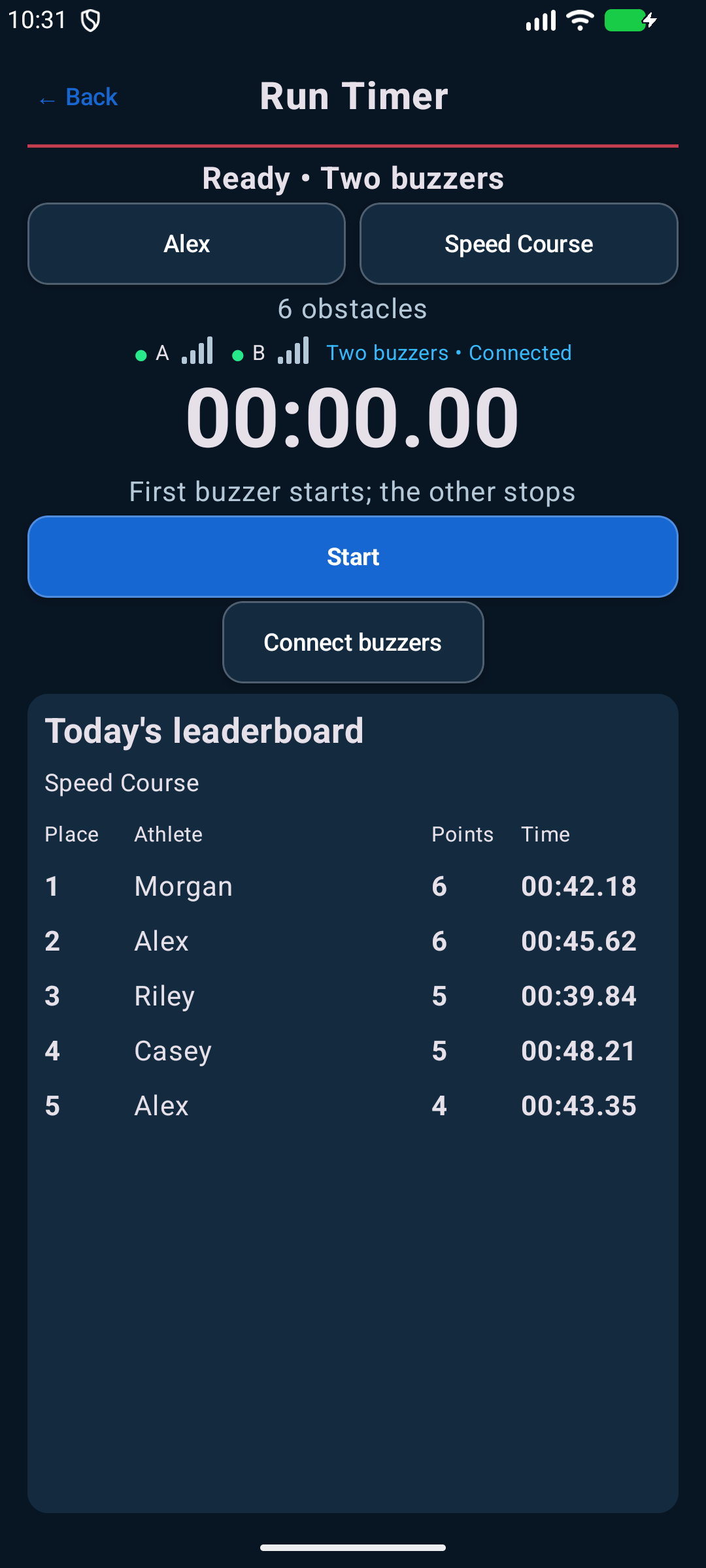
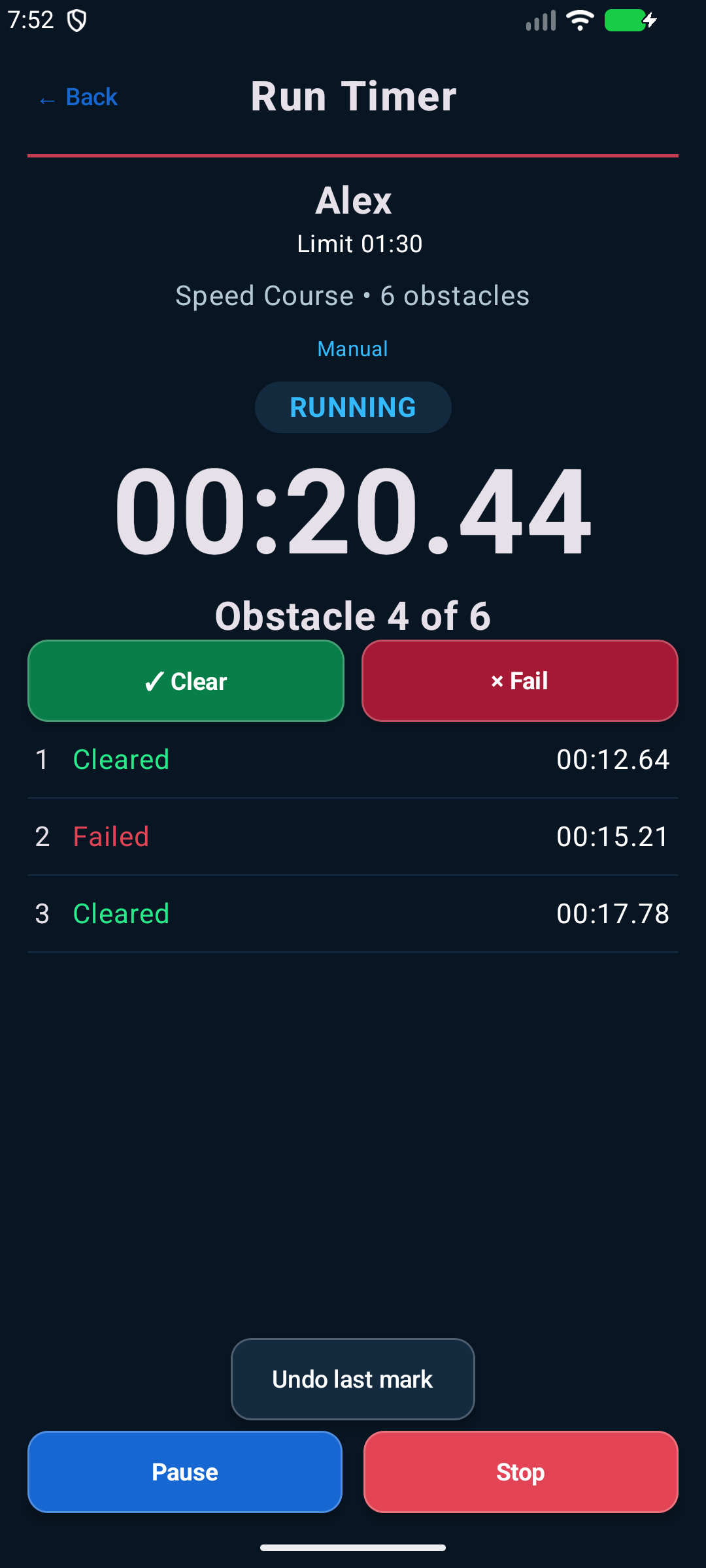
Start and stop the timer on the phone. Record each Clear or Fail, pause when needed, and review the result before saving. Manual mode keeps the course and scoring workflow available without physical buzzers.
A coach-led practice, a judged skills session, or a quick course test before setting up the hardware.
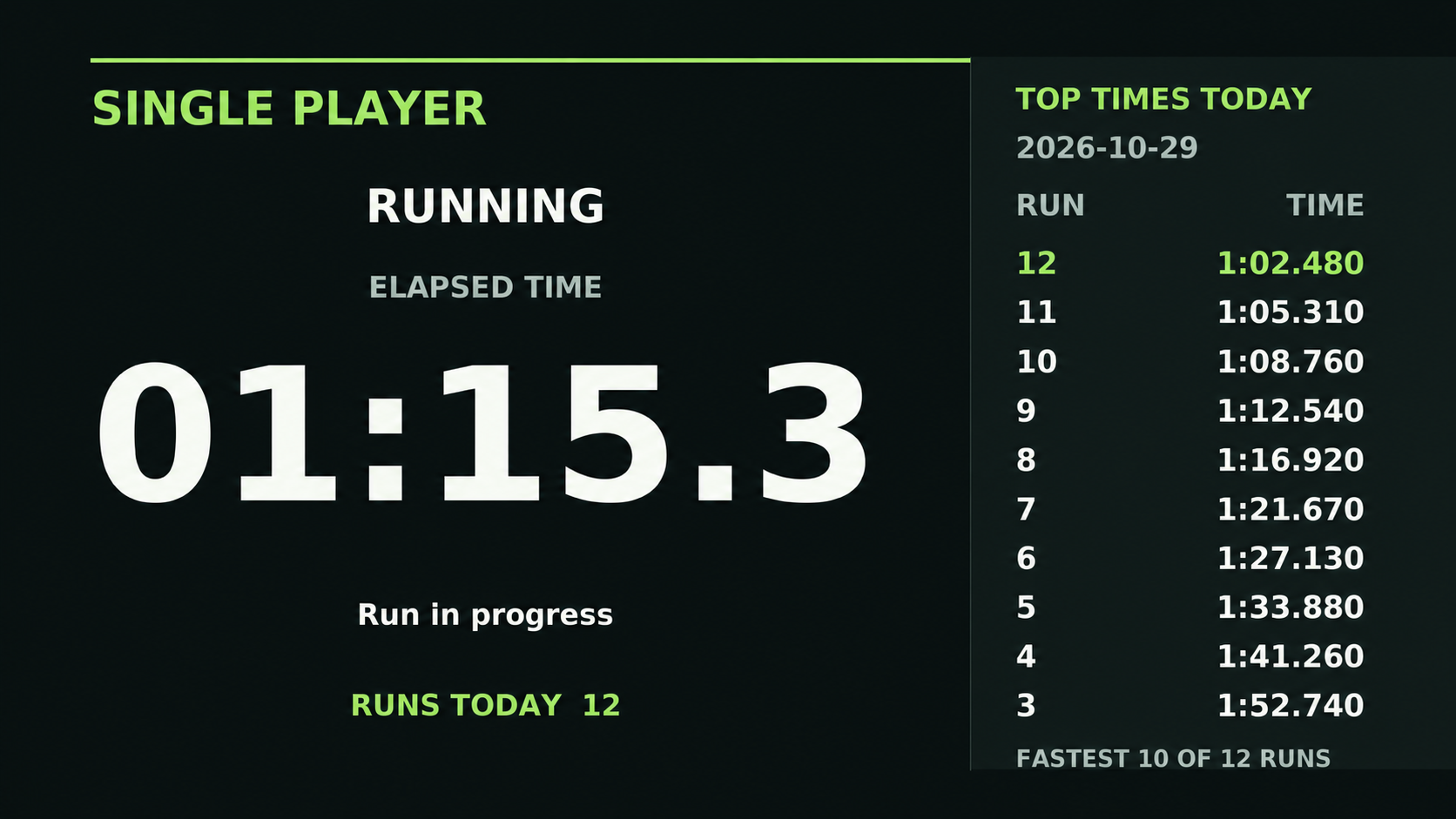
Single Player is in development. The planned mode brings the start, finish, and daily time board to a TV setup. Press one buzzer to start, complete the course, then hit the second to stop. See your time on the big screen and compare it with the day’s fastest attempts.
A repeatable gym challenge where an athlete can start, finish, see a time, and come back for another attempt. This mode is not yet available.
Spectator Display is in development. The planned experience brings the current run to a connected TV. Show the athlete’s name and running time, see each obstacle outcome, and keep the day’s leaderboard visible for the course being run.
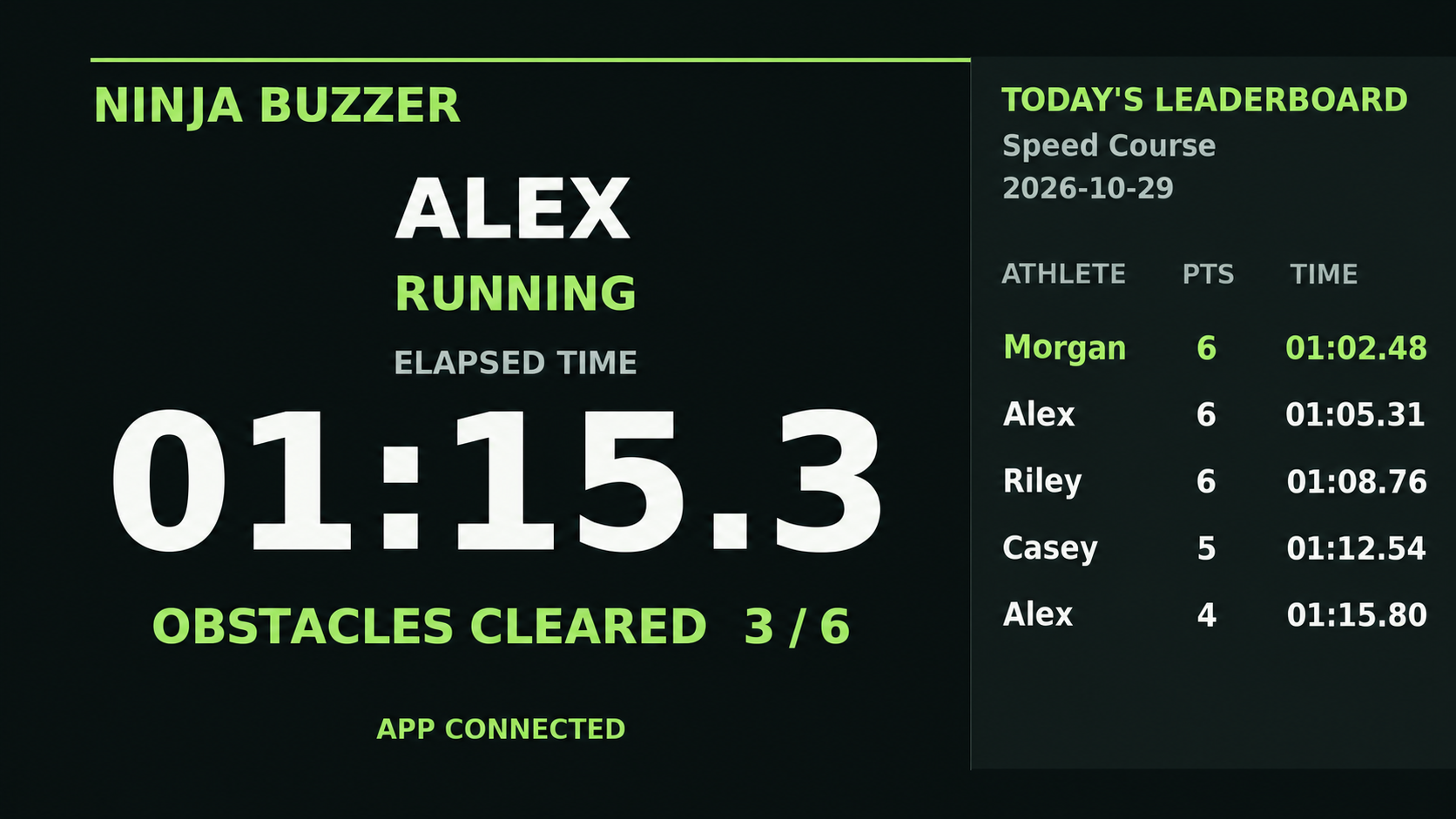
Give families, coaches, and waiting athletes a shared view during a gym session or course challenge. Follow the current athlete and see the day’s course standings together. Spectator Display is not yet available.
The app stays in control. Start and stop overrides, obstacle counts, and Clear / Fail marks are managed in the app.
One daily board. Every current mode. Today’s leaderboard is available in One Buzzer, Two Buzzer, and Manual mode.
App screenshots use example session data and connection states. TV illustrations show planned layouts. Select an image to open it at full size.
04 / A CLOSER LOOK AT THE APP
Your Android phone is the control point.
Manage courses, obstacle marks, and run history in the app.
Create reusable courses with an obstacle count and optional time limit. Switch courses as your gym layout or session changes.
Mark each obstacle in sequence, with elapsed time recorded at the mark. Undo the last mark or review the result before saving.
Review saved times and obstacle results. Filter history by athlete, course, or date, and sort by time or obstacles cleared.
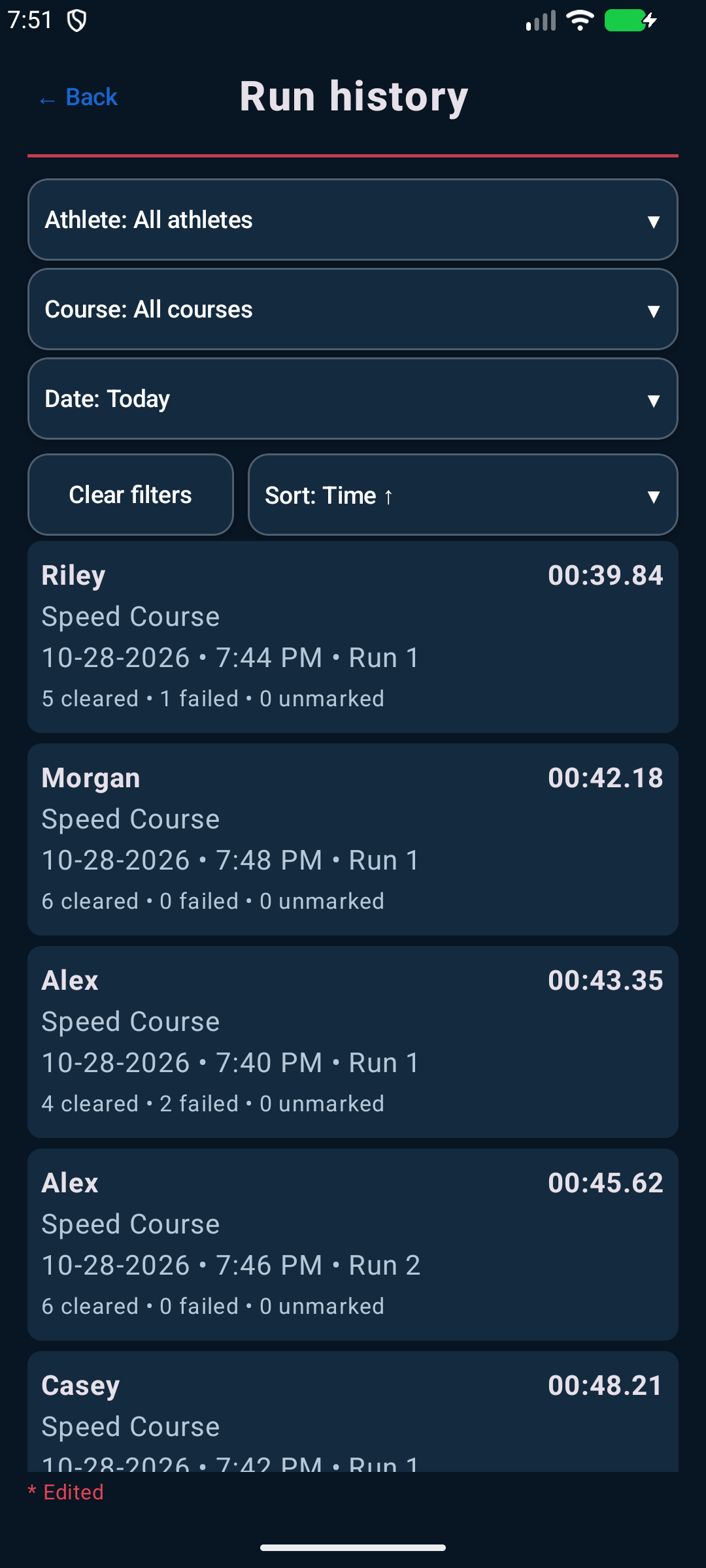
Use your saved results to compare attempts and spot progress. History shows the times and obstacle outcomes behind the result.
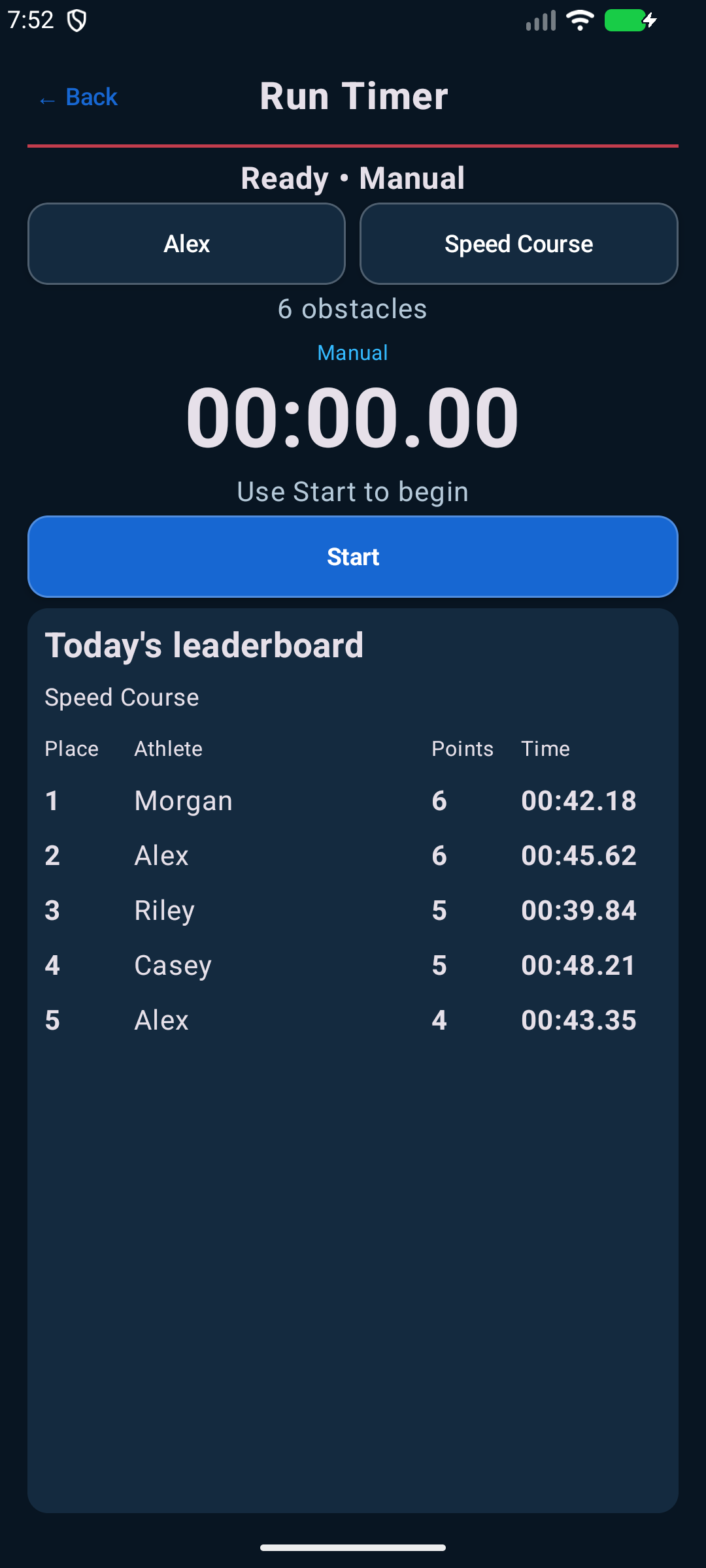
THE DAY’S CHALLENGE, RIGHT BELOW THE TIMER
Give the next athlete something to chase.
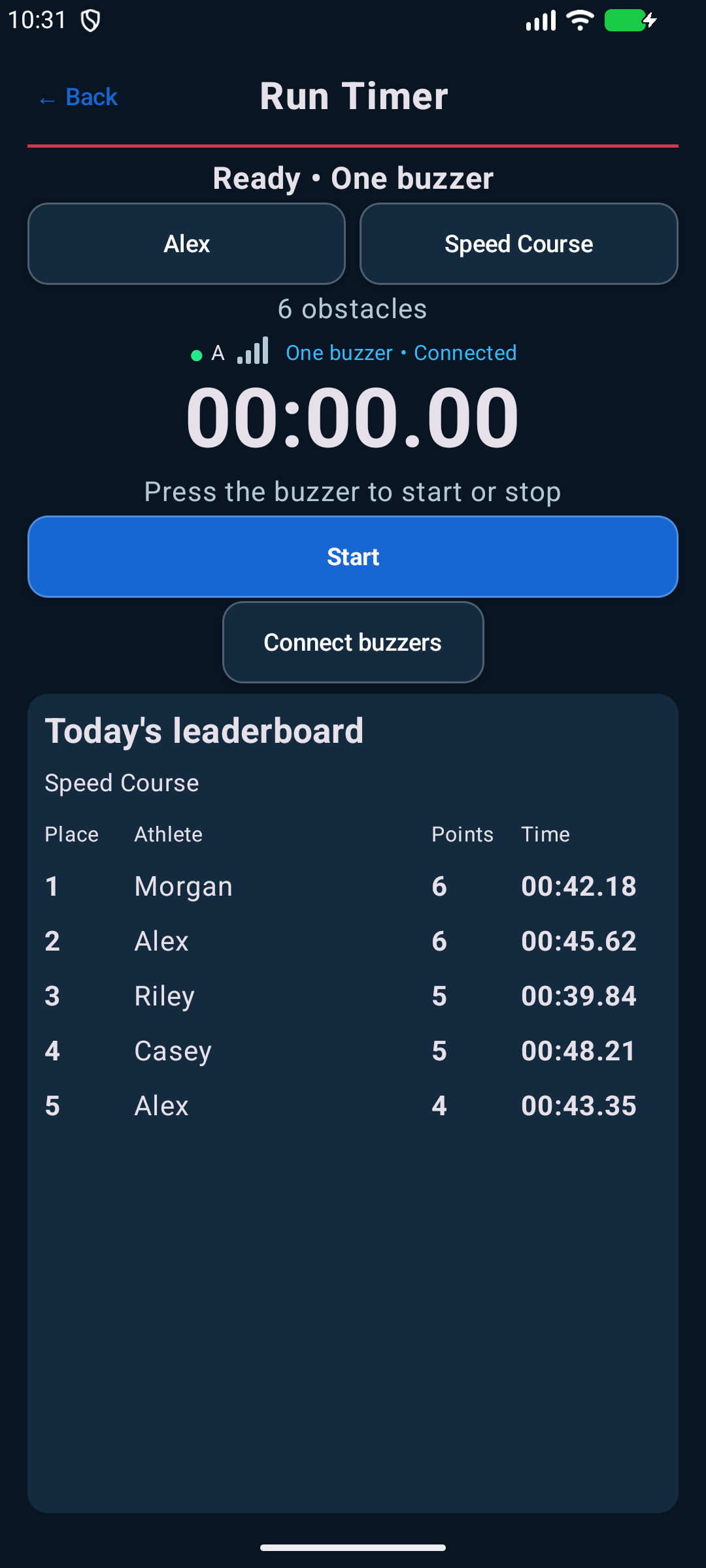
Save a run and it joins today’s leaderboard for the selected course. In the app’s ready screen, the board sits directly below the timer—so the results stay in view between attempts.
Make it a daily challenge.
Run a gym session, compare repeat attempts, or set a course for everyone to take on that day.
05 / THE HARDWARE
Red that commands attention.
Blue that brings it to life.
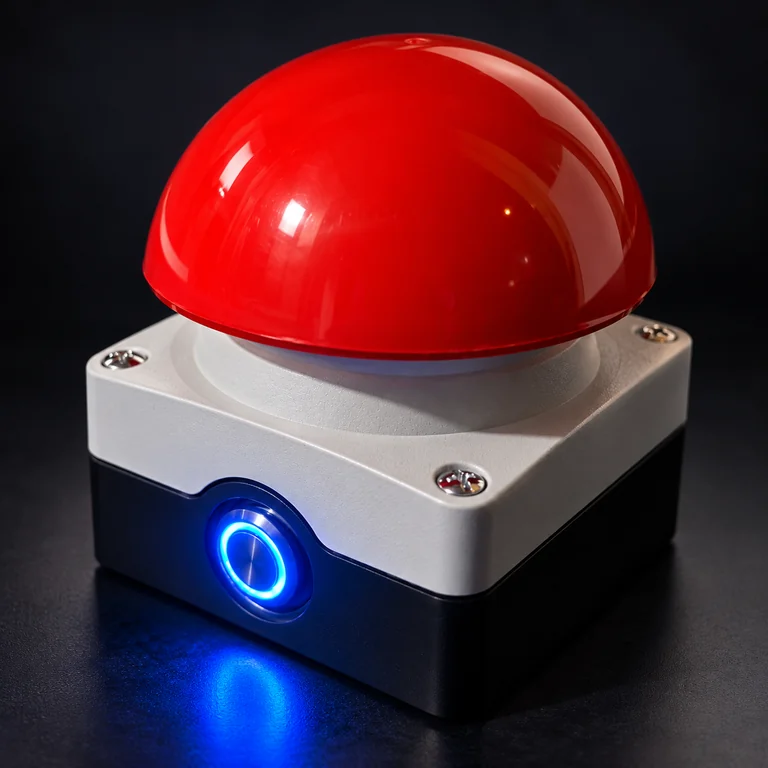
The Ninja Buzzer’s identity starts with the hardware itself: a glossy mushroom-style button, a light gray enclosure, and that unmistakable electric-blue ring.
06 / GOOD TO KNOW
From the first setup to the next attempt.
The Ninja Buzzer system connects wirelessly to the Android app on your phone. Use one or two connected buzzers to control a run, while the app handles courses, obstacle counts, Clear and Fail marks, saved history, and the daily course leaderboard. Manual mode lets you start and stop entirely from the app. Ask us about your planned setup.
One Buzzer can start from the app or from the buzzer, making it useful for a coach-started run with a finish buzzer or a loop with one shared start/finish button. Two Buzzer lets either buzzer start and the other stop, with app start/stop overrides. Manual starts and stops entirely in the app, without physical buzzers. The app controls obstacle counts and Clear / Fail marks in all three modes.
The physical buzzers control the start and finish. An operator uses Clear and Fail in the app to score the obstacles during the run. The app records the elapsed time for each mark.
It is available in One Buzzer, Two Buzzer, and Manual mode, and shows today’s saved attempts for the selected course. Runs are ranked by obstacles cleared, then by fastest time when clear counts match. It appears below the ready timer in the phone app. Select the board in the app to see the matching course and date in run history.
Single Player is coming soon. The planned setup uses a TV and two buzzers: one to start, the other to stop, with a large time display and daily time leaderboard. The image shown here is a development illustration of the planned experience.
Spectator Display is coming soon. A connected TV will show the name and time of the athlete running. The screen will briefly flash green for an obstacle clear and red for a fail, while the daily leaderboard stays displayed for the course being run. It is a planned way for families, coaches, and other athletes to follow the session together.
Yes. The product photograph on this page is the supplied Ninja Buzzer image. It shows the red dome, light gray enclosure, and illuminated blue ring without changing the hardware’s appearance.
It is the illuminated ring around the front power button. Its electric-blue light is the inspiration for the subtle blue accents throughout the Ninja Buzzers website.
Detailed specifications and setup instructions will be added when they are available. Dimensions, power requirements, timing-system compatibility, and operating instructions are not yet published here.
You can join the preorder waitlist for availability and preorder updates. Joining registers your interest; it takes no payment and does not reserve a unit. Pricing, launch timing, and eligible shipping destinations will be confirmed before orders open.